Direct Modeling
Boxes, cylinders, spheres, and complex solids. Boolean union, difference, and intersection with automatic pre-flight validation.
Describe what you want to build. Aurox creates, modifies, and validates geometry directly in Rhinoceros 3D — 195 tools, zero manual clicks.
195 modeling tools controlled by natural language. From simple boxes to parametric facades.
Boxes, cylinders, spheres, and complex solids. Boolean union, difference, and intersection with automatic pre-flight validation.
Draw profiles and revolve into solids. Loft between cross-sections. Sweep along paths. Open surfaces auto-capped to closed breps.
Create full parametric definitions with components, sliders, and data flow. Adjustable after creation — no manual wiring.
Auto-generates and executes Python scripts for batch operations, complex patterns, and custom automation workflows.
82 built-in skills, 68 techniques, plus corrections and preferences that accumulate across sessions. Learns from your usage to reduce errors and speed up workflows.
Built on MCP (Model Context Protocol). Works with Claude Desktop, Claude Code, Codex, or any MCP-compatible AI client.
Attach a reference image and Aurox analyzes it — identifies object type, estimates dimensions, decomposes into primitives, and models it step by step.
Remembers context per .3dm file across sessions. Skills used, objects created, and preferences persist so you pick up where you left off.
BYOK mode shows per-turn and session costs with model-aware pricing. Adaptive token limits and turn caps keep spending predictable.
Three steps from install to geometry.
Type PackageManager in Rhino and search "Aurox", or grab it from Food4Rhino. Works with Rhino 7 and Rhino 8 on Windows.
Chat in the Aurox panel with your own API key (BYOK) or a local CLI (Claude Code / Codex), or drive Rhino from a desktop AI app via MCP. A managed subscription is coming soon.
Tell Aurox what to create. It picks the right tools, handles errors, and delivers validated geometry.
Preview Aurox workflows from Rhino and MCP.
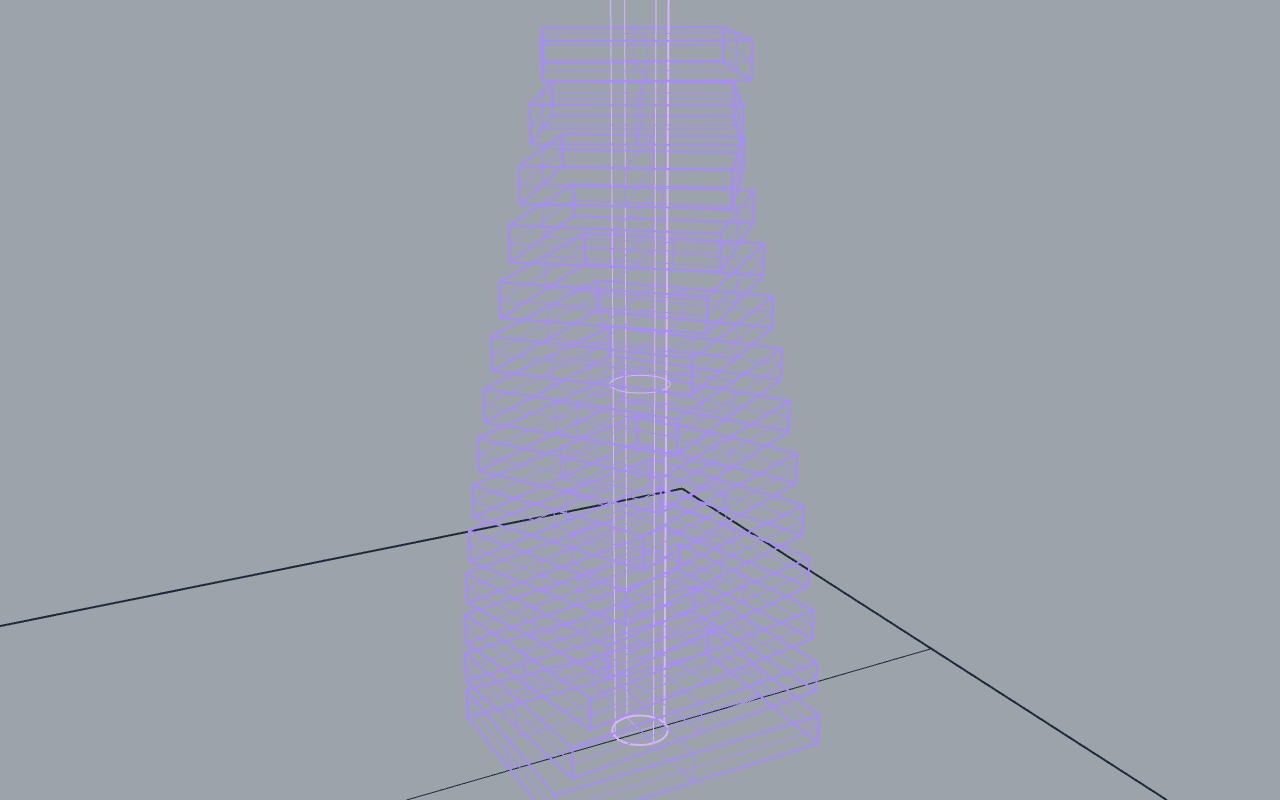
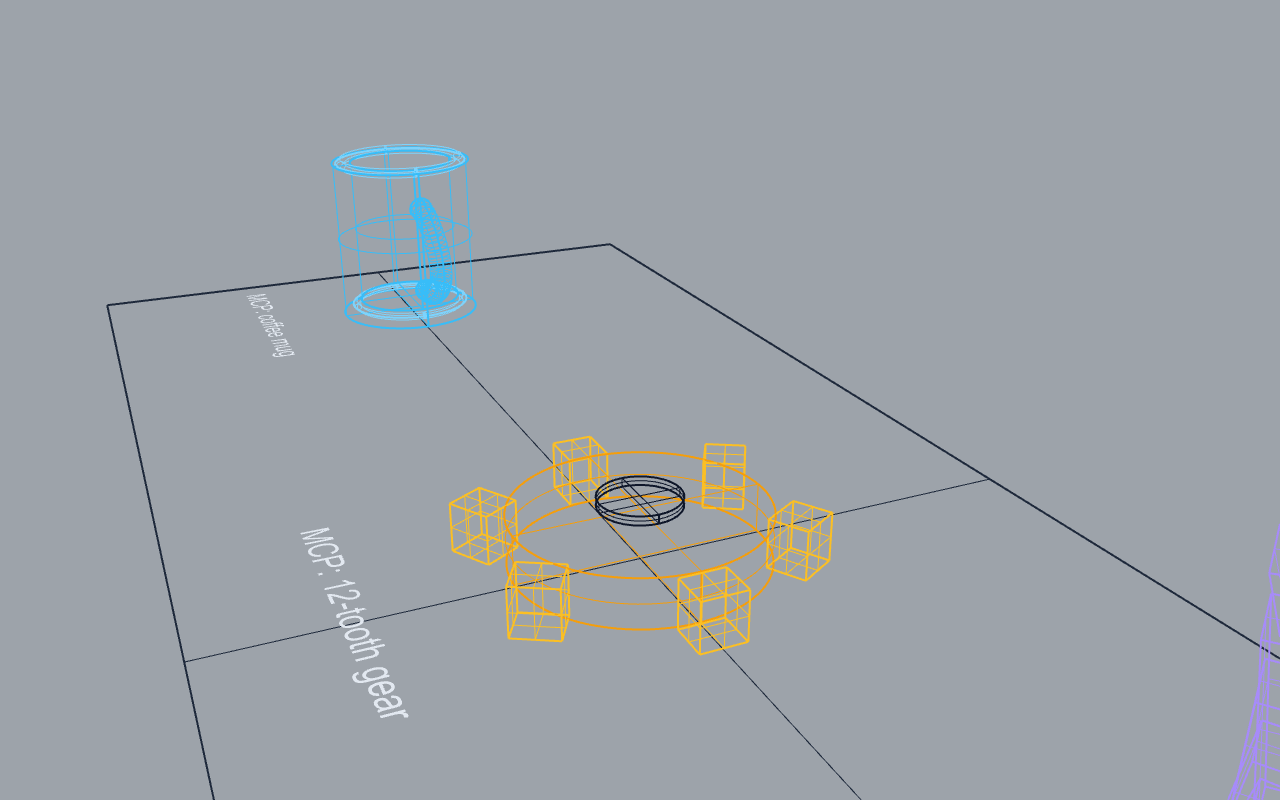
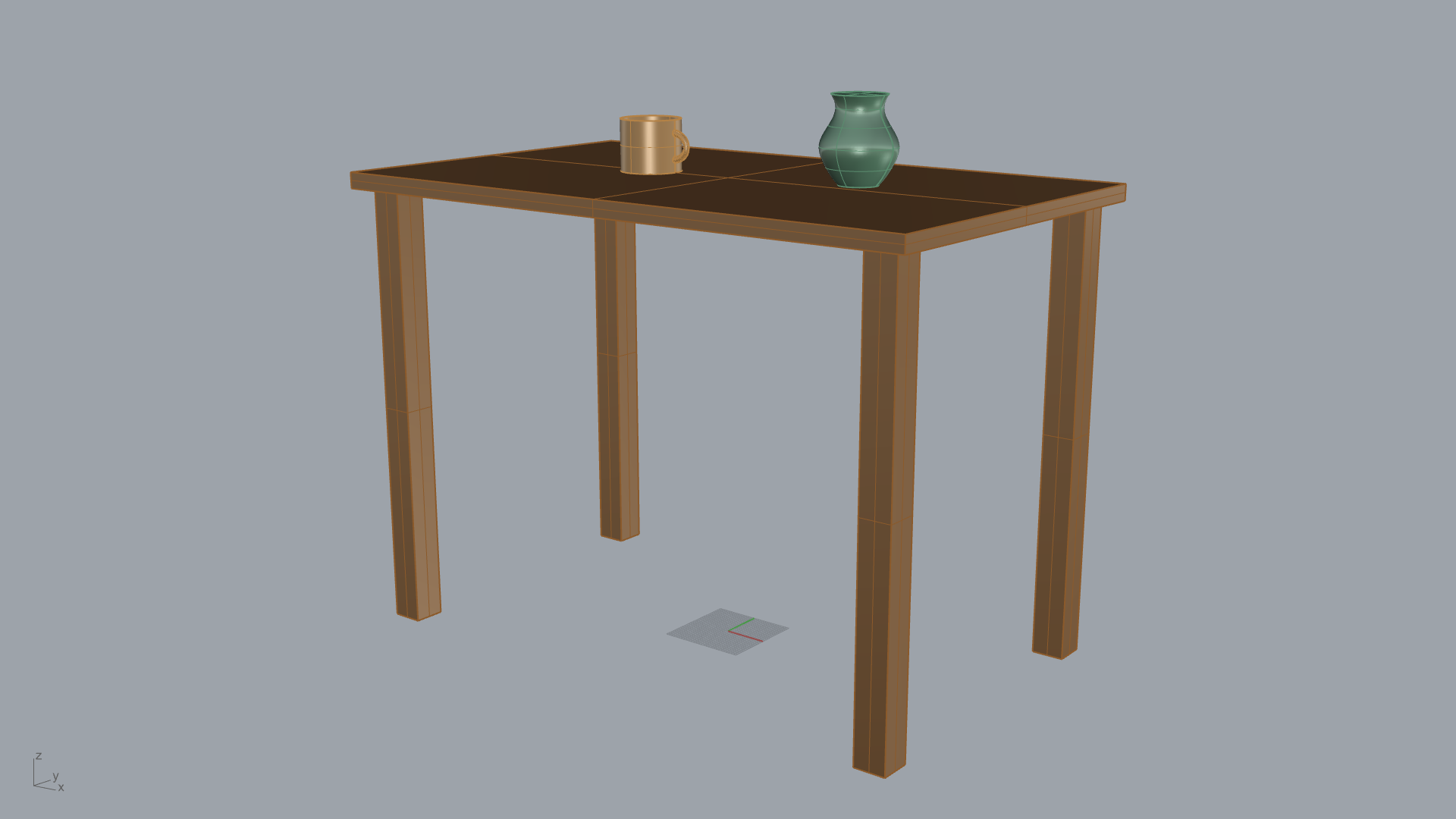
Install the plugin once, then choose your connection mode and follow the steps.
Connect Aurox to Claude Desktop or Codex via the Model Context Protocol. A visual desktop app talks to Rhino through an MCP server.
In Rhino, type PackageManager in the command line, search "Aurox", and click Install. Or grab it from Food4Rhino and drag the .yak file into an open Rhino window. Separate packages exist for Rhino 7 and Rhino 8 — restart Rhino when prompted.
Type Aurox in the command line to open the chat panel. Click the Settings gear, set Access Mode to MCP Desktop, and click Save.
Install Claude Desktop, Claude Code, or Codex if you haven't already. In Settings, scroll to MCP Client Setup and click the matching Configure button. This registers Aurox with the current user, including its resource path and UTF-8 settings — no manual config editing needed.
Prefer to edit the file yourself? Claude Desktop's config lives at %APPDATA%\Claude\claude_desktop_config.json.
Restart your desktop AI app. Rhino tools will appear in its tool list automatically. Keep Rhino open with the Aurox panel visible — that's what the app controls.
Chat happens in the desktop app, not the Aurox panel. Describe geometry to build and watch it appear in Rhino — Aurox handles tool selection and error recovery.
Chat inside the Aurox panel, powered by Claude Code or Codex running locally on your machine. No separate terminal window or desktop app — the CLI tool runs quietly in the background and drives Rhino directly through the chat you already have open.
In Rhino, type PackageManager in the command line and search "Aurox", or download it from Food4Rhino.
Claude Code and Codex are both distributed via npm. Grab Node.js from nodejs.org if you don't have it already.
Type Aurox to open the chat panel, click the Settings gear, set Access Mode to Local CLI, and pick a provider — Claude Code or Codex.
Click Install to pull the CLI tool via npm, Run login to authenticate with your account, then Test CLI to confirm it works. Click Save.
Type a prompt right in the Aurox chat panel. The local CLI handles the request and streams tool calls back into Rhino in real time.
Use your own API key with the built-in chat panel inside Rhino. No external client or CLI needed — everything runs in the Rhino sidebar, and you pay your provider directly at their rates.
In Rhino, type PackageManager in the command line and search "Aurox", or install from Food4Rhino.
In Rhino, type Aurox in the command line. The Aurox chat panel opens as a dockable sidebar.
Click the Settings gear icon in the chat panel toolbar at the top.
Set Access Mode to BYOK, choose a provider — Anthropic, OpenAI, or OpenRouter — and a model, then paste your API key and click Test Connection.
Get a key at console.anthropic.com (Anthropic), platform.openai.com (OpenAI), or openrouter.ai/keys (one key for Claude, GPT, Gemini, DeepSeek, and more).
Click Save, type a prompt in the chat panel, and press Enter. Aurox creates geometry directly in your Rhino viewport. Switch between Chat and GH modes using the mode selector.
A managed hosted experience. No API keys to manage — sign up, paste a token into Rhino, and start modeling. Currently in development.
Sign up on the Aurox website to get a subscriber token. No API key needed — billing and access are managed for you.
Same plugin as other modes. Download from GitHub Releases and run install.bat.
Run RhinoAuroxChat in Rhino. Open Settings, select Subscriber mode, and paste your auth token.
Everything is configured. Claude Haiku 4.5 handles your requests, with automatic routing to Sonnet for complex tasks. Usage is tracked in your account dashboard.
Common questions about Aurox.
Aurox is an AI-powered 3D modeling assistant that works inside Rhinoceros 3D. You describe geometry in natural language, and Aurox creates it using Rhino's modeling tools — booleans, revolves, lofts, extrusions, Grasshopper definitions, and Python scripts. It has 195 tools and handles error recovery automatically.
Rhino 7 (.NET Framework 4.8) and Rhino 8 (.NET 7.0) on Windows. Both versions are fully supported with the same feature set. macOS support is not yet available.
In Subscriber and BYOK modes, Aurox uses Claude Haiku 4.5 for fast responses, with automatic routing to Claude Sonnet for complex multi-turn tasks like Grasshopper definitions and advanced modeling. In MCP mode, you use whichever model your client provides — Opus, Sonnet, Haiku, or others.
Aurox is currently in free beta. MCP mode is always free (you pay your AI provider directly). BYOK mode uses your own API key at Anthropic's rates. A managed subscription tier with usage-based pricing is coming soon.
Yes. AI model calls are processed through cloud APIs. However, your geometry stays local in Rhino — only text prompts and tool call parameters are sent to the AI. No NURBS or mesh data leaves your machine.
MCP (Model Context Protocol) is an open standard by Anthropic for connecting AI models to external tools. Aurox exposes Rhino's modeling capabilities as MCP tools, so any compatible client — Claude Desktop, Claude Code, or custom integrations — can drive Rhino directly.
No. All geometry stays in your local Rhino instance. The AI receives only text-based scene summaries — object counts, layer names, bounding boxes, and object types — and sends back tool commands. Your actual NURBS curves, surfaces, meshes, and Brep data never leave your machine. Viewport captures are optional and used only within your conversation session.
No. Your geometry, prompts, and conversations are never used to train or fine-tune any AI model. Aurox uses the Anthropic API, which has a firm policy: API usage data is not used for model training. Optional telemetry (usage metrics, tool success rates) is strictly opt-in and contains no geometry or design data — only aggregate statistics to improve tool reliability.
Aurox uses multiple layers of protection. Script mode validates all code against a blocklist of dangerous operations (no file system access, no process spawning, no eval/exec). MCP connections require a passcode with constant-time comparison and lockout after failed attempts. API keys are encrypted at rest using Windows DPAPI. Rate limiting prevents abuse on all endpoints.
Safe Mode disables the three tools that can run arbitrary code: execute_python, execute_csharp, and run_command. Unlike named tools like add_box or boolean_union that have fixed, bounded behavior, these script tools let the AI generate and execute freeform code inside your Rhino process. Safe Mode restricts Aurox to the 192 named modeling tools only — no arbitrary code can run. Toggle it in Settings under “Allow script execution.” Recommended for shared environments or when handing Aurox to less technical users.
Yes. Aurox has a dedicated GH mode that creates parametric Grasshopper definitions with components, sliders, and proper data flow wiring. You can switch between Chat and GH modes at any time.
Aurox has built-in error recovery. If a boolean fails, it checks solid validity and repositions. If edge indices are wrong, it re-queries topology. Failure patterns are tracked and fed back into the learning system to improve future sessions.
MCP Desktop: A desktop app (Claude Desktop or Codex) connects to Rhino via the MCP protocol. Visual interface with full tool trace visibility. CLI: Claude Code in your terminal connects to the Aurox UI inside Rhino — terminal control with real-time feedback in the chat panel. BYOK: Built-in chat panel in Rhino using your own Anthropic API key. Self-contained, no external client needed. Subscription: (coming soon) Managed hosted experience with no keys to manage, team features, and usage dashboards.
OS: Windows 10 or later. Rhino: Version 7 (.NET Framework 4.8) or Version 8 (.NET 7.0). Disk: ~15 MB for the plugin. Internet: Required for AI model calls. Python 3.10+ is only needed for MCP server mode (not for the built-in chat panel). macOS is not yet supported.
You pay Anthropic directly at their API rates. Aurox uses Claude Haiku 4.5 by default ($0.80 / $4.00 per million tokens input/output), with auto-routing to Sonnet for complex tasks ($3 / $15 per MTok). A typical modeling session with 5-10 tool calls costs a few cents. Per-turn and session costs are shown in the chat panel so you always know what you're spending. Adaptive token limits and a 10-turn cap keep costs predictable.
Yes. Attach a reference image to your prompt and Aurox will analyze it — identifying the object type, estimating proportions and dimensions, decomposing it into modeling primitives, and building it step by step. It works best with clear product photos, furniture, and mechanical parts where shapes can be decomposed into known geometry patterns.
Aurox ships with 82 built-in skills and 68 techniques — proven modeling workflows extracted from real sessions and curated by humans. Skills cover product design (mugs, bottles, phone cases), furniture (tables, chairs, shelves), mechanical parts (gears, brackets, bearings), jewelry (rings, pendants), and architecture (facades, stairs, walls). When your prompt matches a skill, Aurox follows the tested workflow instead of improvising — saving 2-5 tool calls and avoiding common mistakes.
Yes. Aurox has a 4-layer learning system that persists across sessions. Lessons capture explicit corrections you give. Techniques are proven workflows. Corrections auto-detect failure-recovery patterns. Preferences auto-detect consistent parameter usage (like your preferred fillet radius or layer naming). Additionally, Document Memory persists context per .3dm file, so each project remembers its own history.
Yes. Aurox is listed on Food4Rhino. You can also install directly from Rhino by typing PackageManager and searching for "Aurox". Separate packages are available for Rhino 7 and Rhino 8. Alternatively, download the installer from GitHub Releases for a manual setup that includes the MCP server.
Two modes, switchable at any time. Chat: Multi-turn conversation with direct tool calls for iterative modeling. Scripts are auto-generated and executed inline when needed. GH (Grasshopper): Creates parametric definitions with components, sliders, and wiring on the Grasshopper canvas. Supports Visual (native components only) and Scripted (GhPython + sliders) sub-modes.
Yes. Every modeling operation Aurox performs is wrapped in a standard Rhino undo record. Press Ctrl+Z to undo as you would with any manual operation. Multi-step tasks created with execute_plan are wrapped in a single undo record, so one undo reverts the entire operation.
Yes. Aurox reads your current scene state — objects, layers, selections, and bounding boxes — before every response. You can ask it to modify, boolean, fillet, shell, or reorganize existing geometry. Select objects first and say “fillet the edges” or “move this to the right 50mm.”
The source code is hosted on GitHub for transparency and issue tracking, but Aurox is not open source. Bug reports and feature requests are welcome via GitHub Issues.
Aurox is free during beta. If it saves you time, consider buying us a coffee. Every contribution helps cover API costs, hosting, and development.